How this was captured: we operated the running official web app (0.16.2) and took screenshots at each stage. Some actions were triggered through the app's command palette (S) to keep the test repeatable; the equivalent toolbar or menu path is written in each step. Nothing on this page is a mockup, and no screenshot was generated after the fact.
Step 01
Start a new design
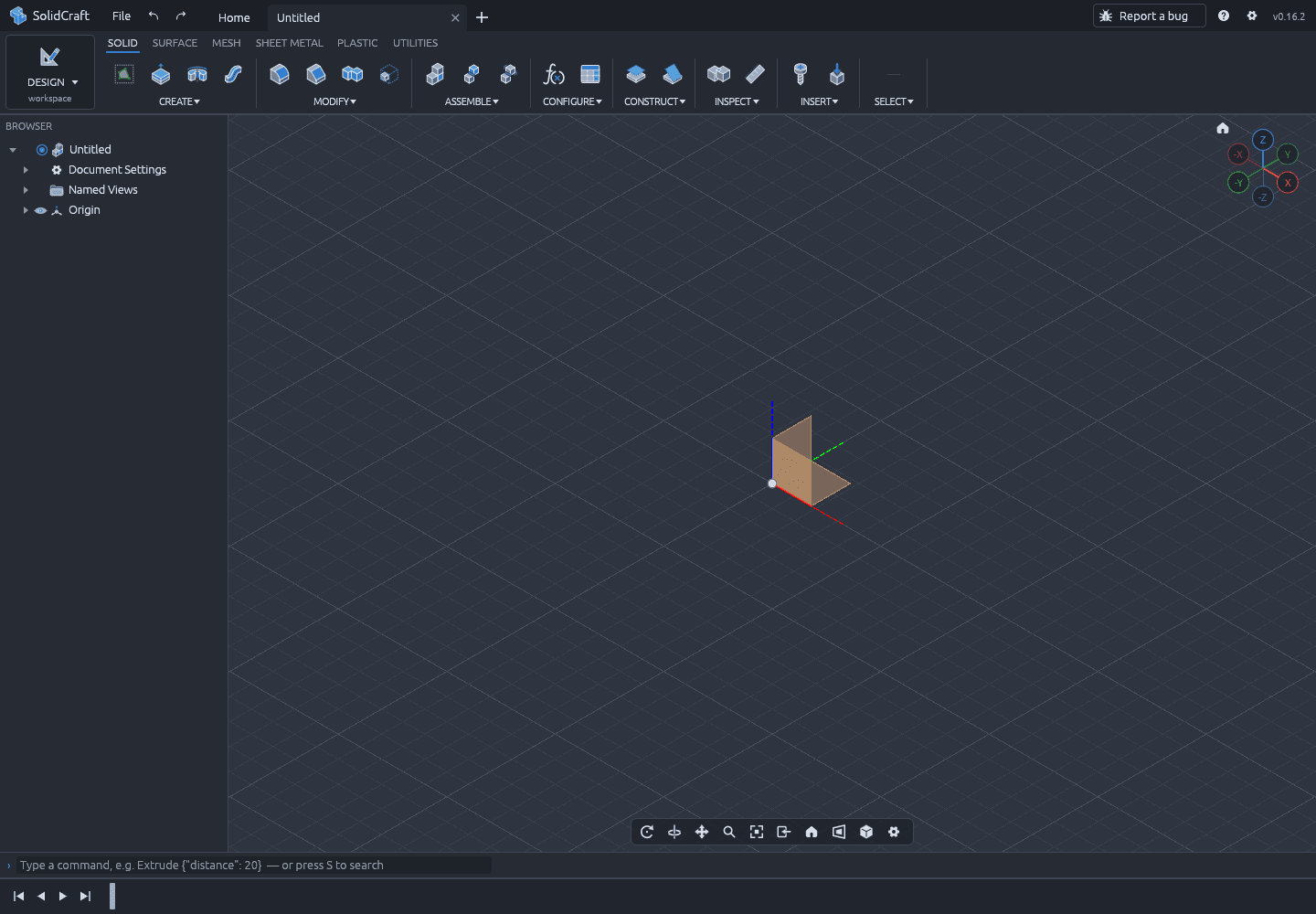
Open the app. On the Home screen, choose New Design. (In the desktop app the same command is under File → New Design, or Ctrl/⌘+N.)
Expected result
- A tab named “Untitled” opens.
- The Browser on the left shows Document Settings, Named Views and Origin.
- The viewport is empty apart from the origin planes and axes.
If it goes wrong
- Menu or toolbar missing: click once inside the viewport to give the app keyboard focus.
- The viewport stays black or the app never finishes loading: try the ?webgl build, and enable hardware acceleration in the browser.
- Working on a phone or tablet: the interface is not designed for touch; use a desktop browser for this tutorial.
Step 02
Open a sketch on the XY plane
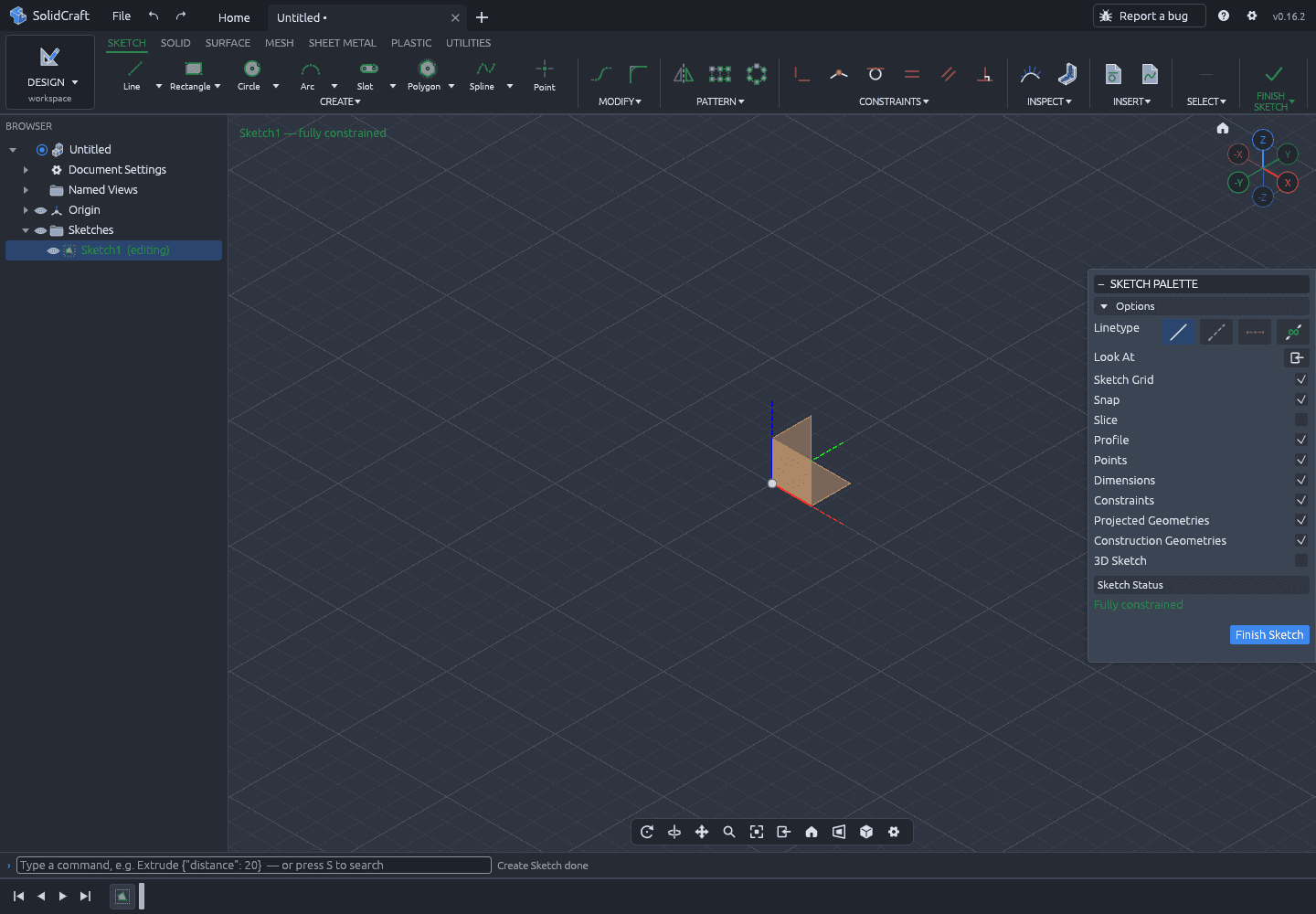
In the Browser, expand Origin and click the XY plane. Then choose Create → Sketch from the toolbar. If you prefer the keyboard, press S, type create sketch, and press Enter.
The app enters sketch mode. The toolbar switches to SKETCH, the Sketch Palette appears on the right, and Sketch1 (editing) is highlighted in the Browser.
Expected result
- The toolbar now starts with Line, Rectangle, Circle and Arc.
- Sketch1 (editing) is highlighted under Sketches.
- Finish Sketch is visible at the top right and in the palette.
If it goes wrong
- Sketch is on the wrong plane: right-click Sketch1 → Delete, then pick XY again. Starting over is faster than repairing the orientation.
- You cannot see XY: expand Origin in the Browser. If it is still hidden, use the eye icon to show the origin planes.
- Nothing happens when you click Sketch: make sure the XY row is actually selected (blue), not just hovered.
Step 03
Draw a 40 × 30 mm rectangle
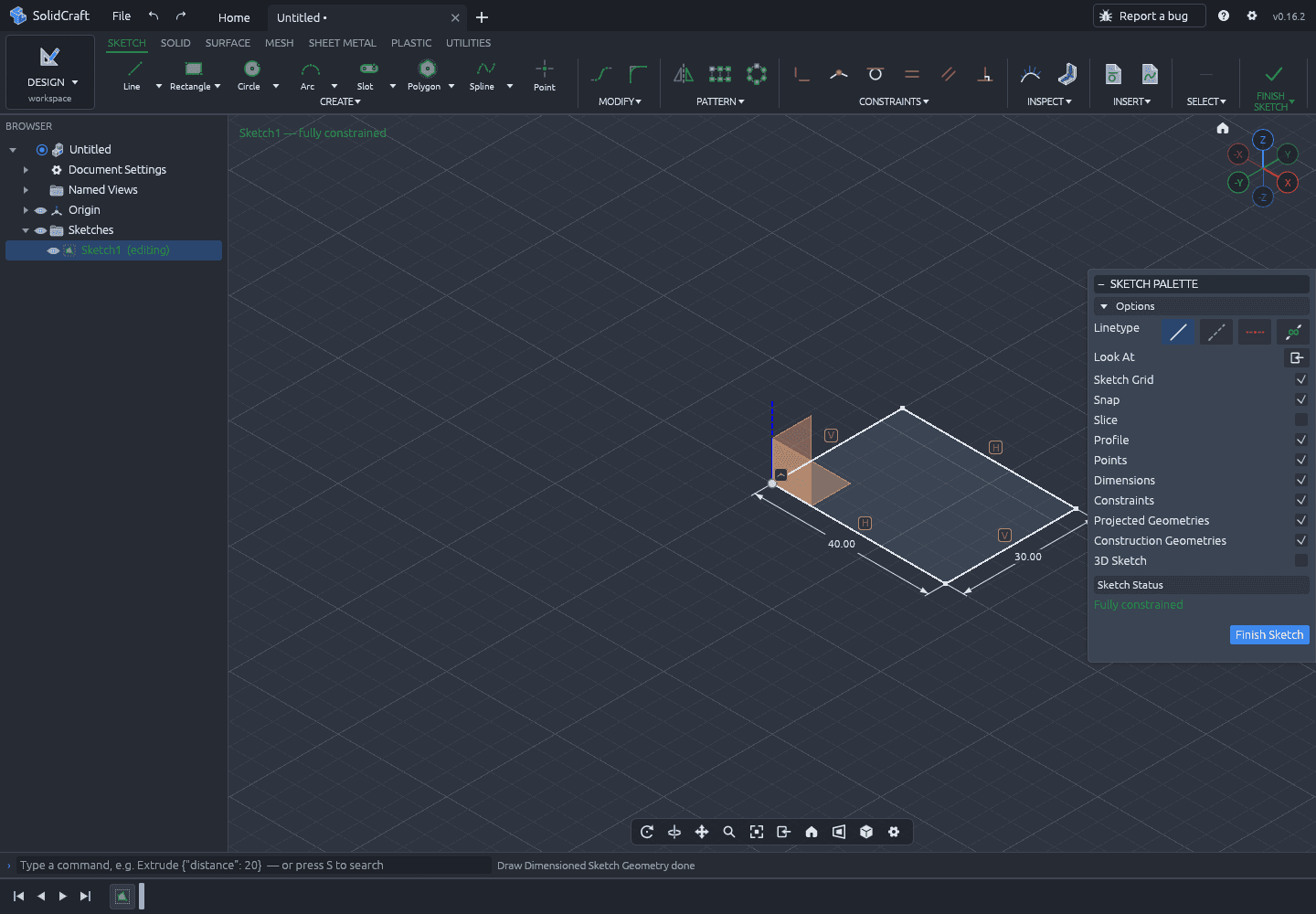
Choose Rectangle, click once near the origin for the first corner, then click again for the opposite corner. The exact size does not matter yet — the dimensions will set it.
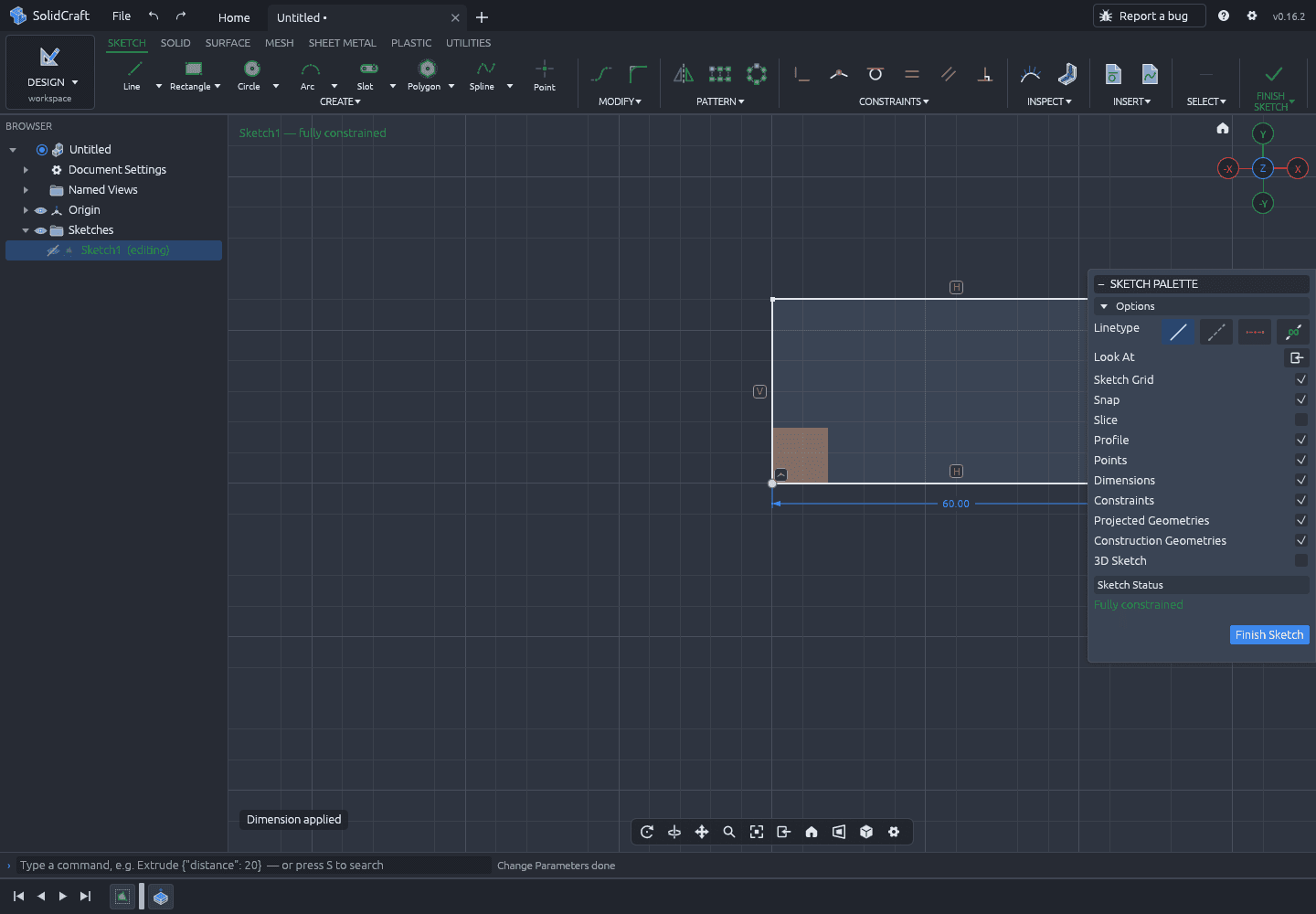
Press D (or choose Dimension in the toolbar), click the bottom edge, type 40 and press Enter. Repeat for the side edge and type 30. The labels in the viewport should read 40.00 and 30.00, and the sketch status should say fully constrained.
Expected result
- Two dimension labels are visible: 40.00 and 30.00 (millimetres).
- The status line reads “Sketch1 — fully constrained”.
- The rectangle is a closed profile, so it can be extruded.
If it goes wrong
- A label shows a different number: double-click the label, select the value, type the correct one and press Enter.
- The sketch is over-constrained: delete the extra dimension (select it, press Delete). Keep one horizontal 40 and one vertical 30.
- Dimension tool will not start: press Escape first; a tool may still be active.
- The rectangle is not at the origin: that is fine for this exercise. The bounding box, not the position, is what we check.
Step 04
Extrude it 20 mm
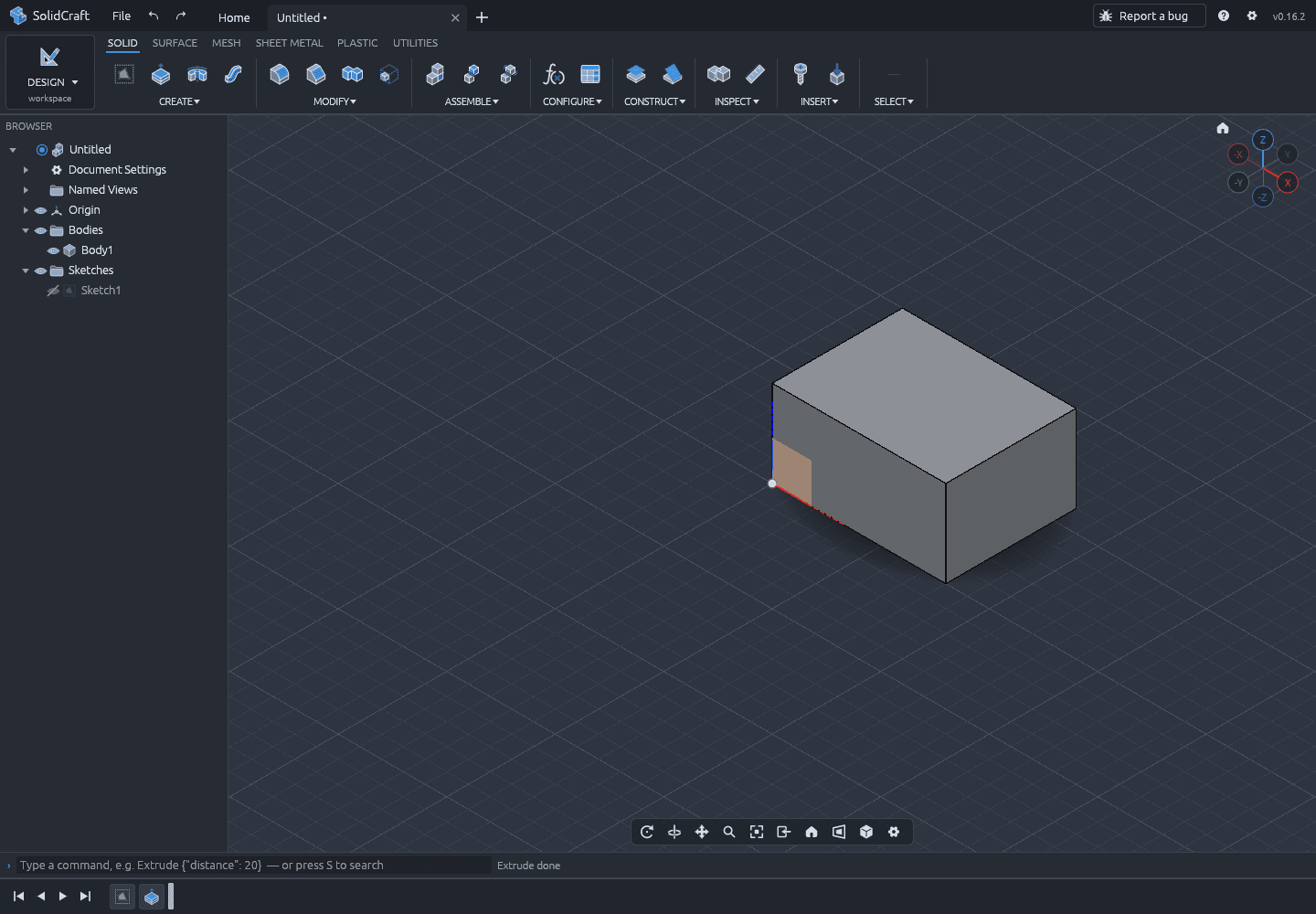
Click Finish Sketch. Click the rectangle in the viewport to select the profile, then choose Create → Extrude. Set the distance to 20 mm, keep the direction positive, and confirm.
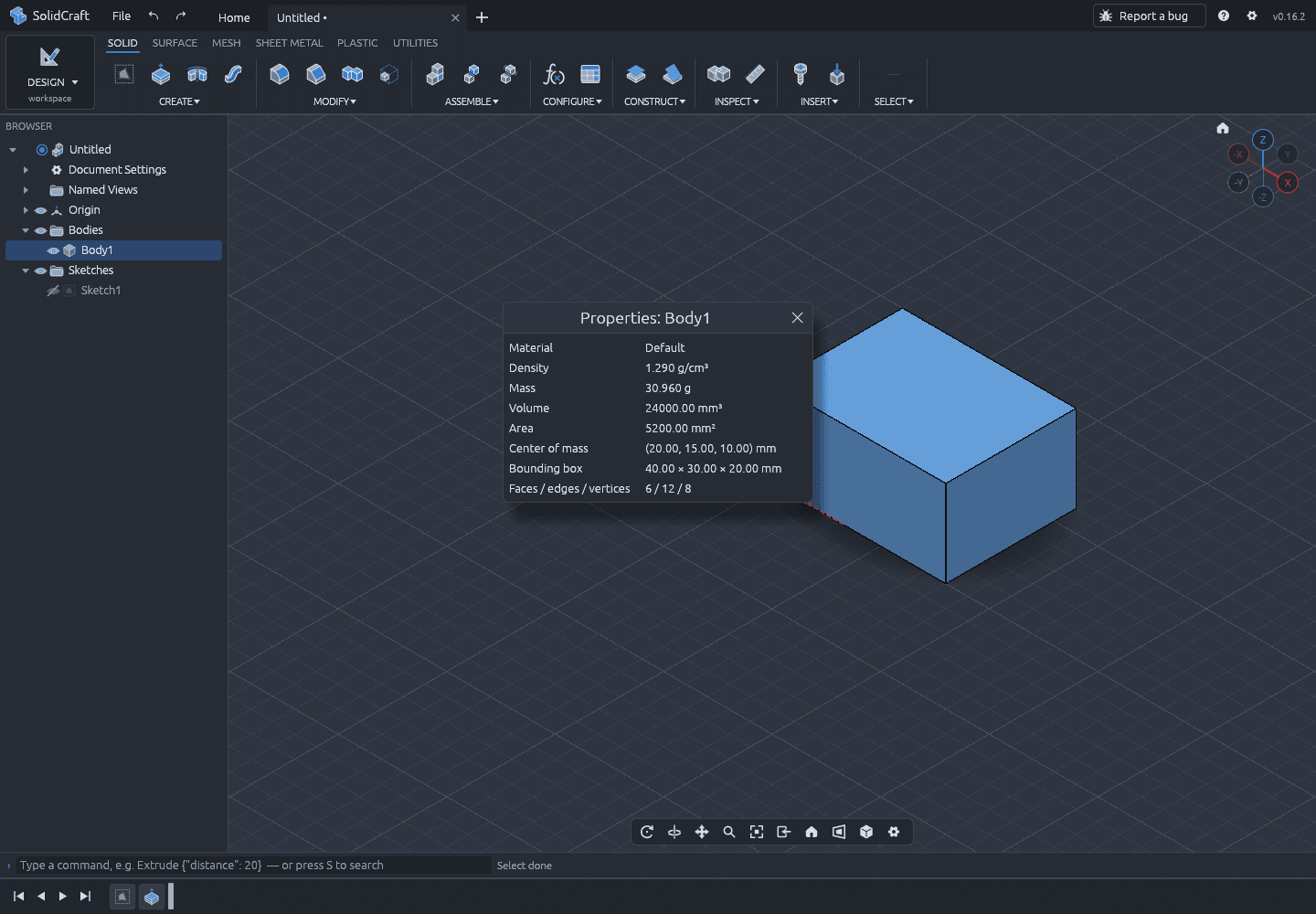
To read the result, right-click Body1 in the Browser and choose Properties. The dialog is the source of every number in this tutorial.
Expected result
- Body1 appears under Bodies; the viewport shows a closed box.
- Volume is 24000.00 mm³.
- Bounding box is 40.00 × 30.00 × 20.00 mm.
- Area is 5200.00 mm²; faces/edges/vertices are 6 / 12 / 8.
If it goes wrong
- Extrude is unavailable: the profile is not closed, or nothing is selected. Go back into the sketch and check for a gap.
- The solid goes the wrong way: flip the direction in the Extrude panel, or use a negative distance.
- No Body1: the operation may be set to “Join” with no target. Choose “New body”.
- Numbers are in inches: check Document Settings → units and set millimetres.
Step 05
Prove it is parametric
A box is just a box until you change it. Double-click Sketch1 in the Browser to edit it, then double-click the 40.00 dimension label. Replace 40 with 60 and press Enter. Finish the sketch.
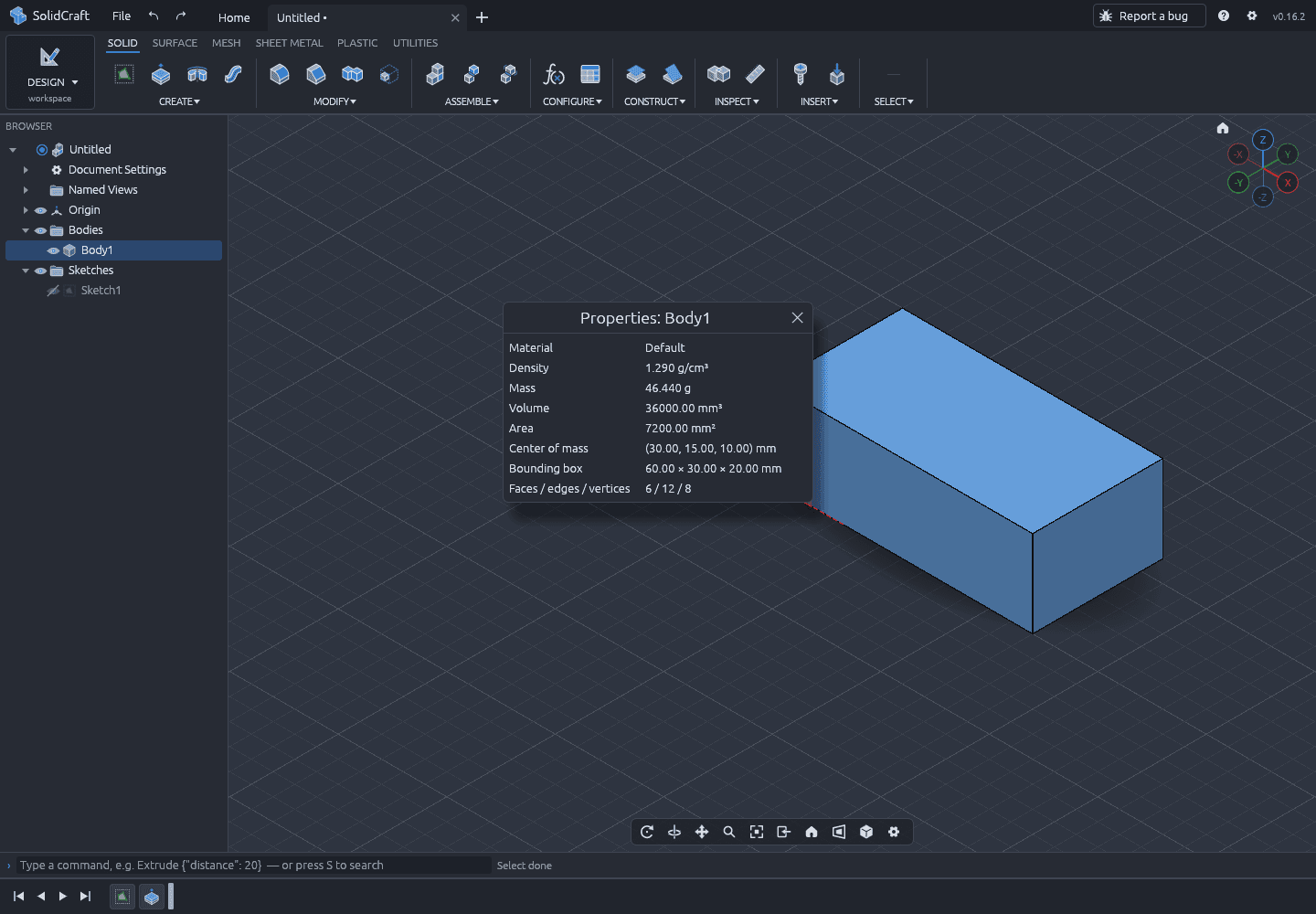
The body rebuilds without redrawing anything. Right-click Body1 → Properties again: the volume should now be 36,000 mm³ and the bounding box 60 × 30 × 20 mm.
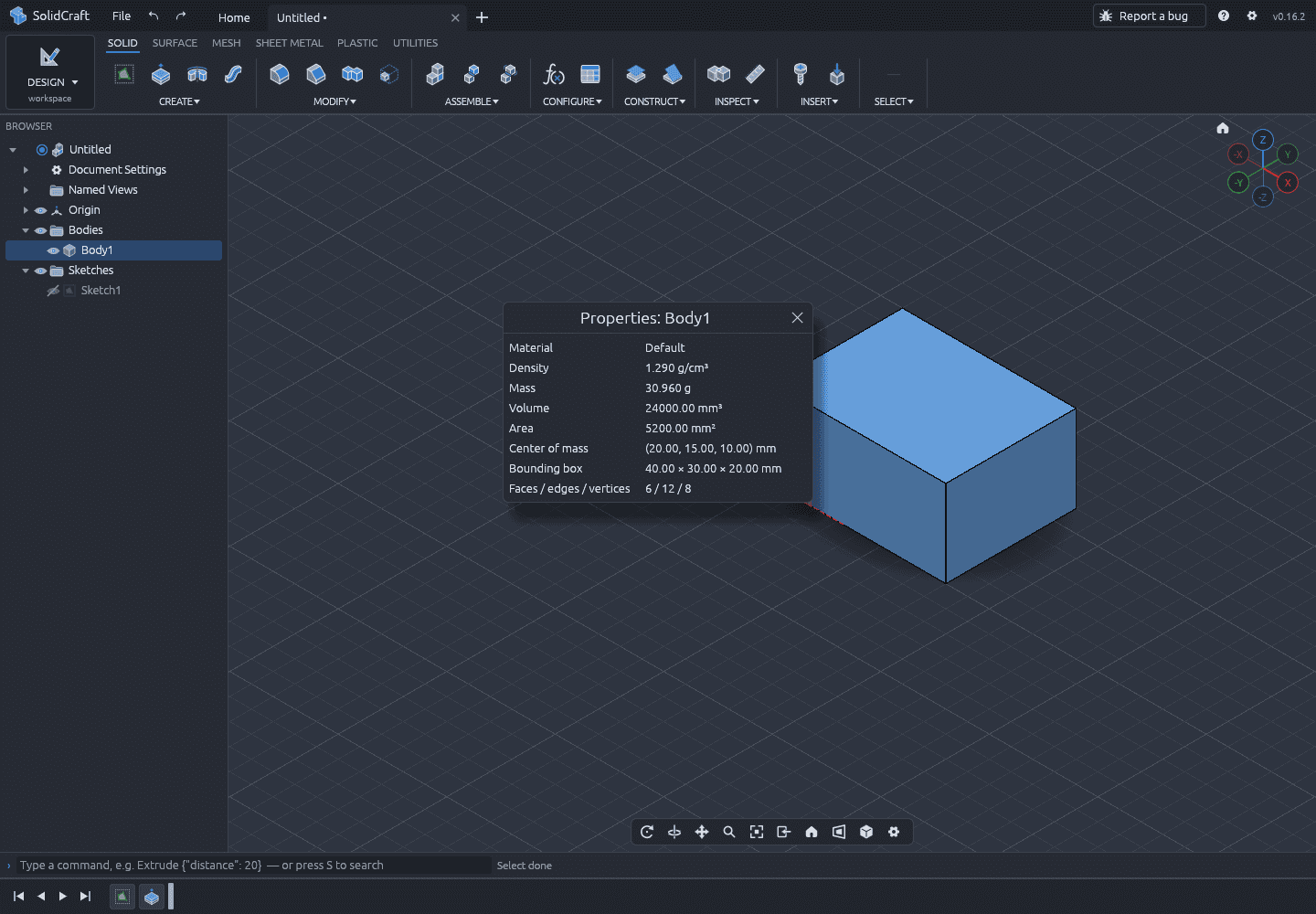
Now change the same dimension back to 40 and finish the sketch. The body returns to 24,000 mm³. This is the model you will save.
Expected result
- Changing 40 → 60 rebuilds the body to 36,000 mm³ without editing Extrude1.
- Changing 60 → 40 restores 24,000 mm³ exactly.
- Body1 still has 6 faces, 12 edges and 8 vertices after each rebuild.
If it goes wrong
- The dimension label is not visible: turn on Dimensions in the Sketch Palette.
- Double-clicking the sketch does nothing: make sure you hit the Sketch1 row in the Browser, not the body in the viewport.
- The body does not change: check the rollback marker at the bottom of the timeline; it may be before Extrude1.
- The value snaps back: press Enter after typing, then click elsewhere in the sketch before finishing.
Step 06
Save the design
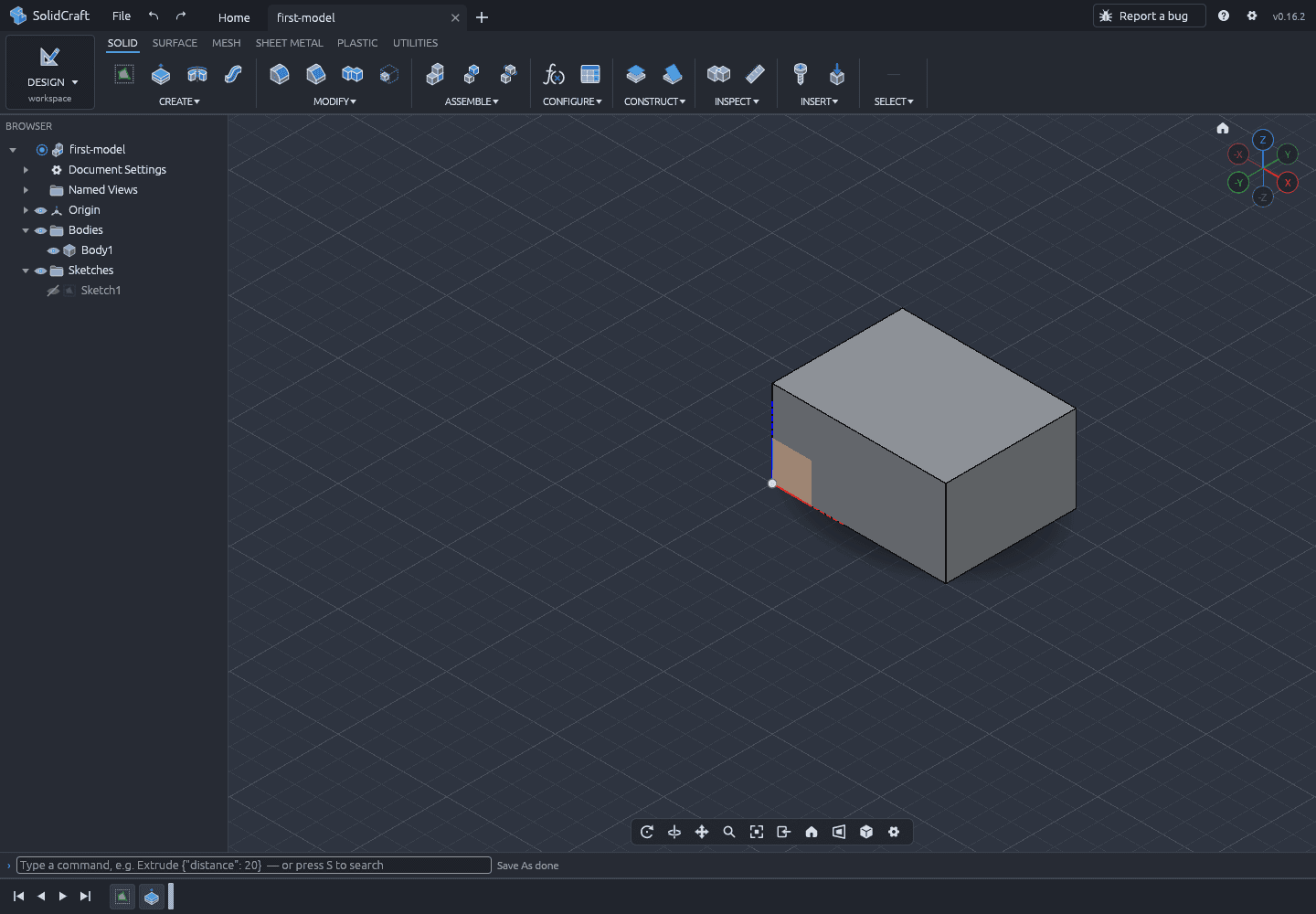
Choose File → Save As…, name the design first-model and confirm. In the browser the file goes into this site's private browser storage (OPFS), not into your Downloads folder. The tab title changes to the design name, which is how you know the save landed.
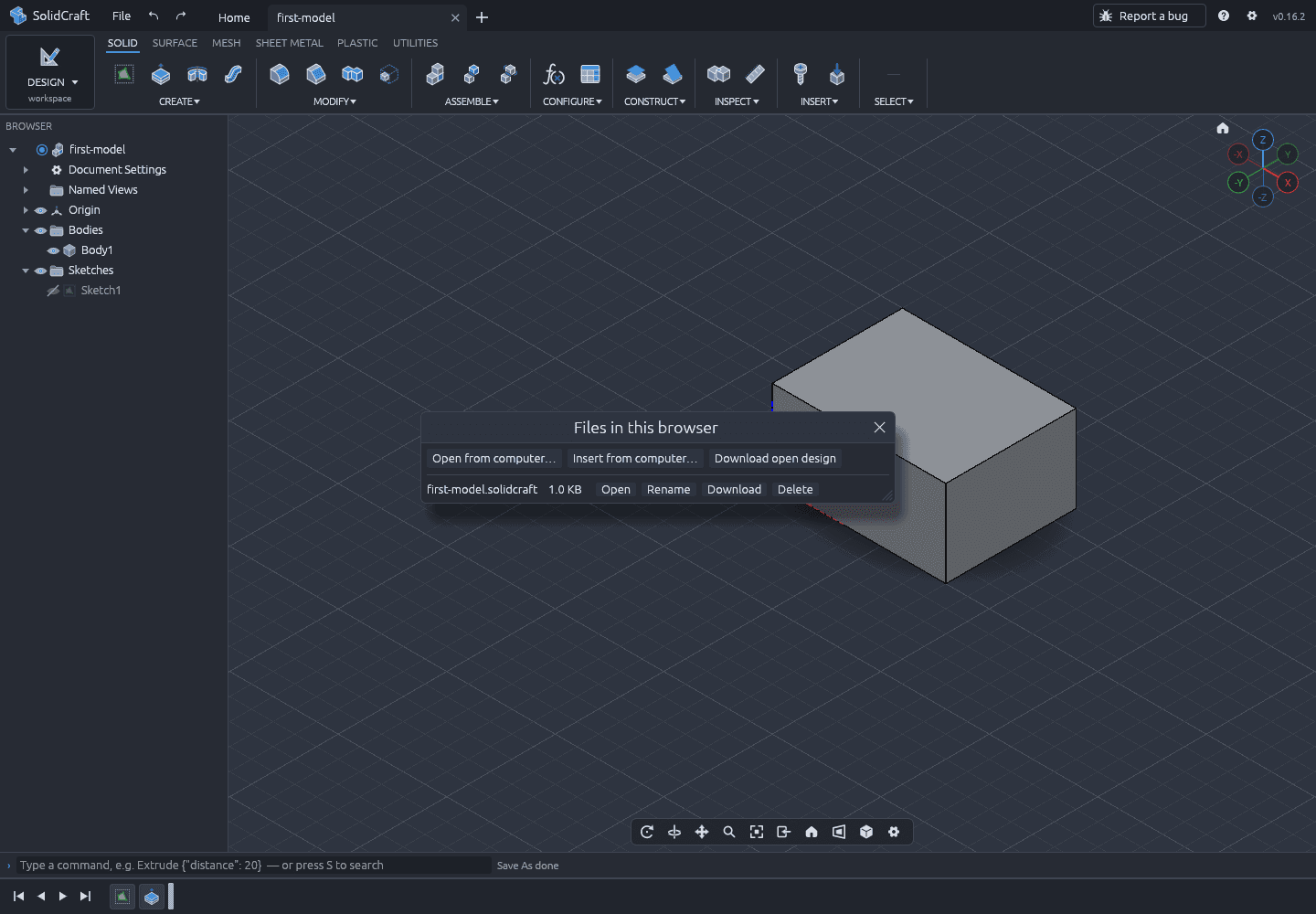
To keep a copy outside the browser, open File → Open…. The Files in this browser panel lists the saved design; its Download row writes a .solidcraft file to your computer.
Expected result
- The tab title is first-model.
- The status bar says “Save As done”.
- The Files in this browser panel lists first-model.solidcraft.
- In the desktop app the file is an ordinary .solidcraft file on disk.
If it goes wrong
- Save is greyed out: the viewport or a panel may have focus. Click the document first.
- You cannot find the file: in the browser it is not in Downloads until you use the panel's Download row.
- Private/incognito window: browser storage disappears when the window closes. Download a copy.
- Storage is full: remove designs you no longer need, or download and delete them.
Step 07
Close and reopen it
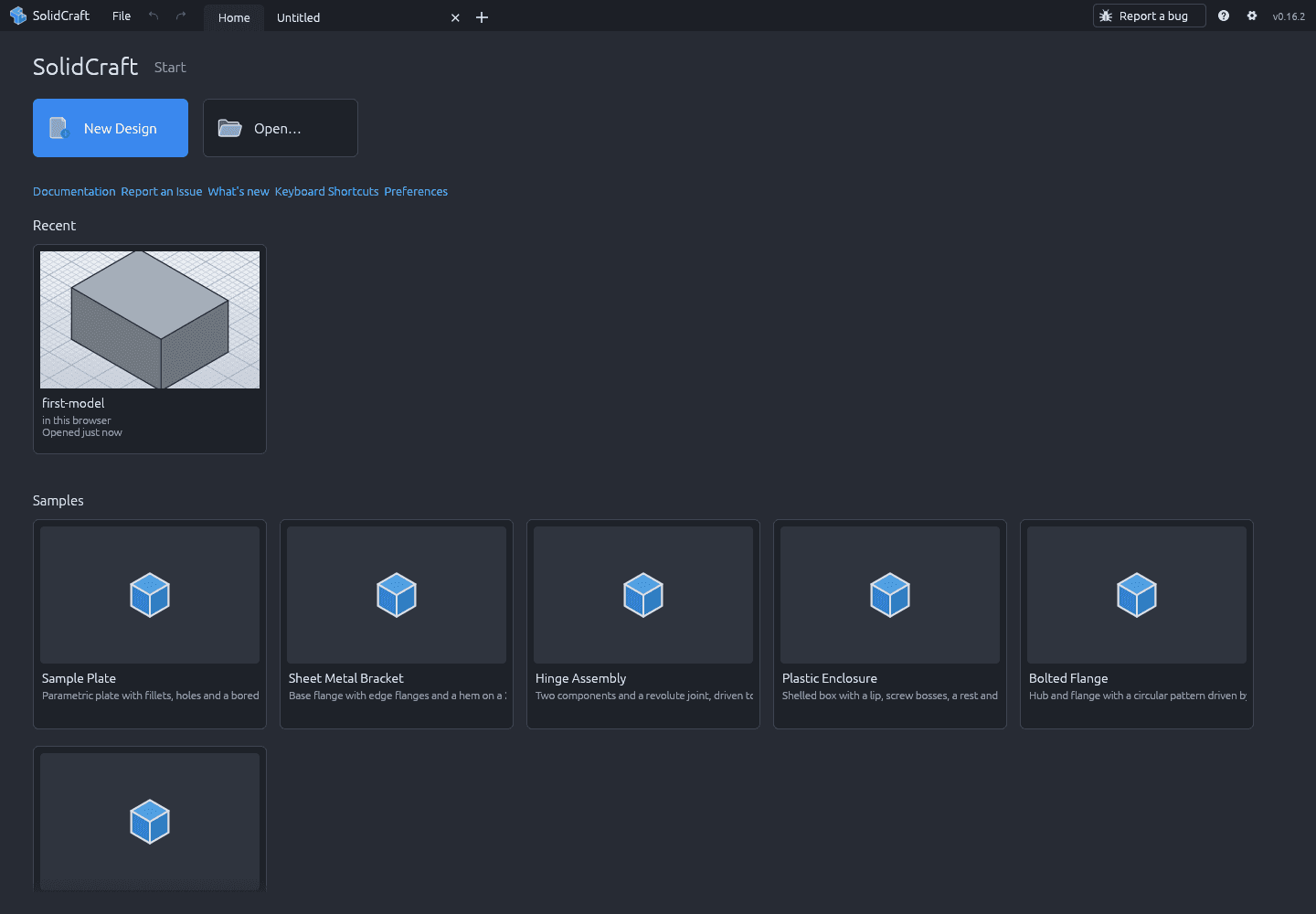
Reload the page (or close the tab and open the app again). The Home screen shows the design under Recent. Click the card, or use File → Open… and choose Open on the first-model.solidcraft row.
This is the test that separates browser storage from a real file: the design has to survive leaving the page. We verified it with a full page reload, which is stricter than switching tabs.
Expected result
- Recent lists first-model on the Home screen.
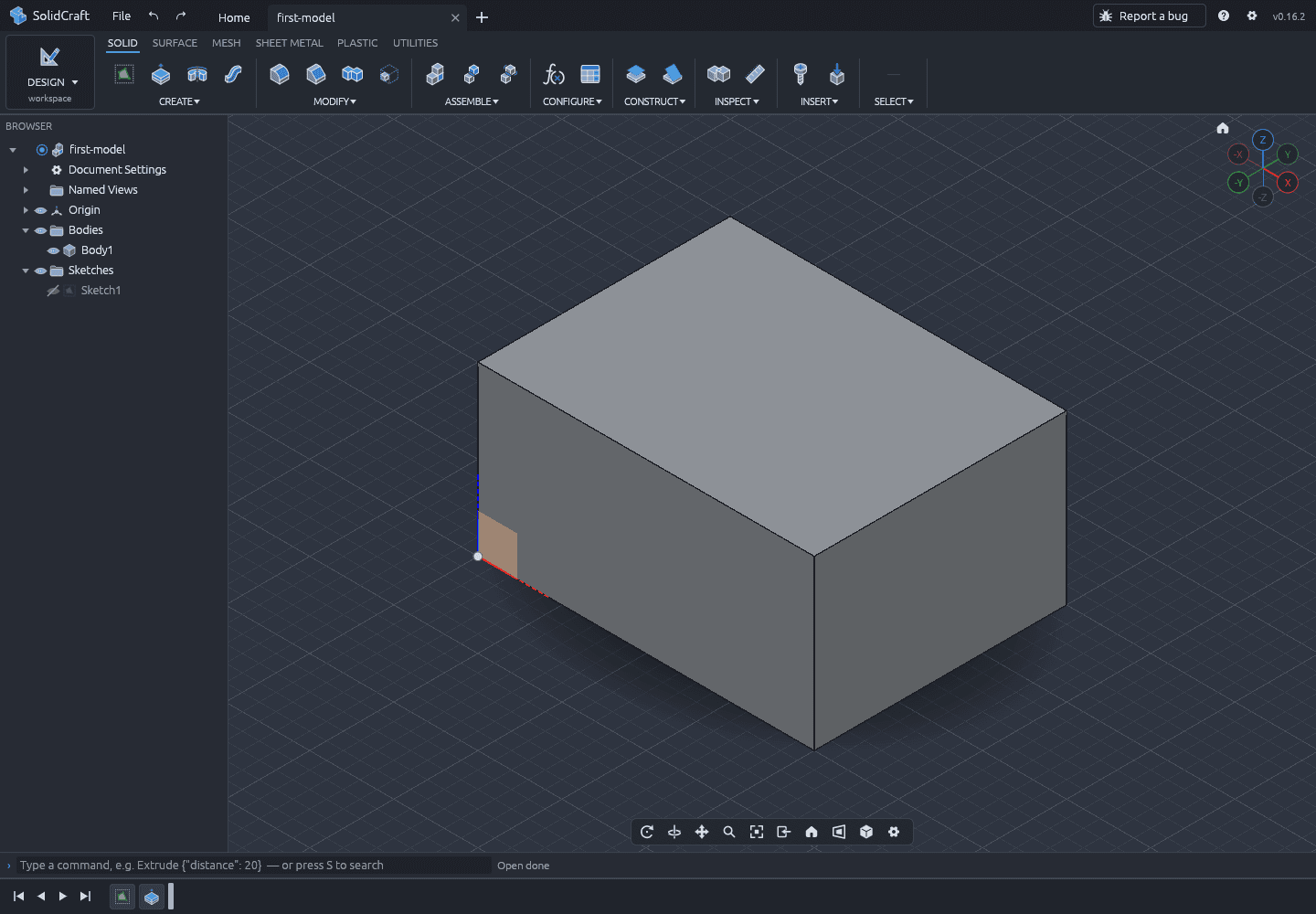
- Opening it restores Body1 and Sketch1 with the 40 × 30 × 20 mm box.
- The status bar reports “Open done”.
If it goes wrong
- Recent is empty: you are in a different browser profile or cleared site data. Use Open from computer with the downloaded .solidcraft file.
- The design opens but the body is missing: check that the sketch and extrude features are not suppressed (right-click → Suppress).
- The file will not open: make sure it ends in .solidcraft and was produced by a compatible version. The container we tested uses format solidcraft-container/1 and document solidcraft/28.
Step 08
Export STEP
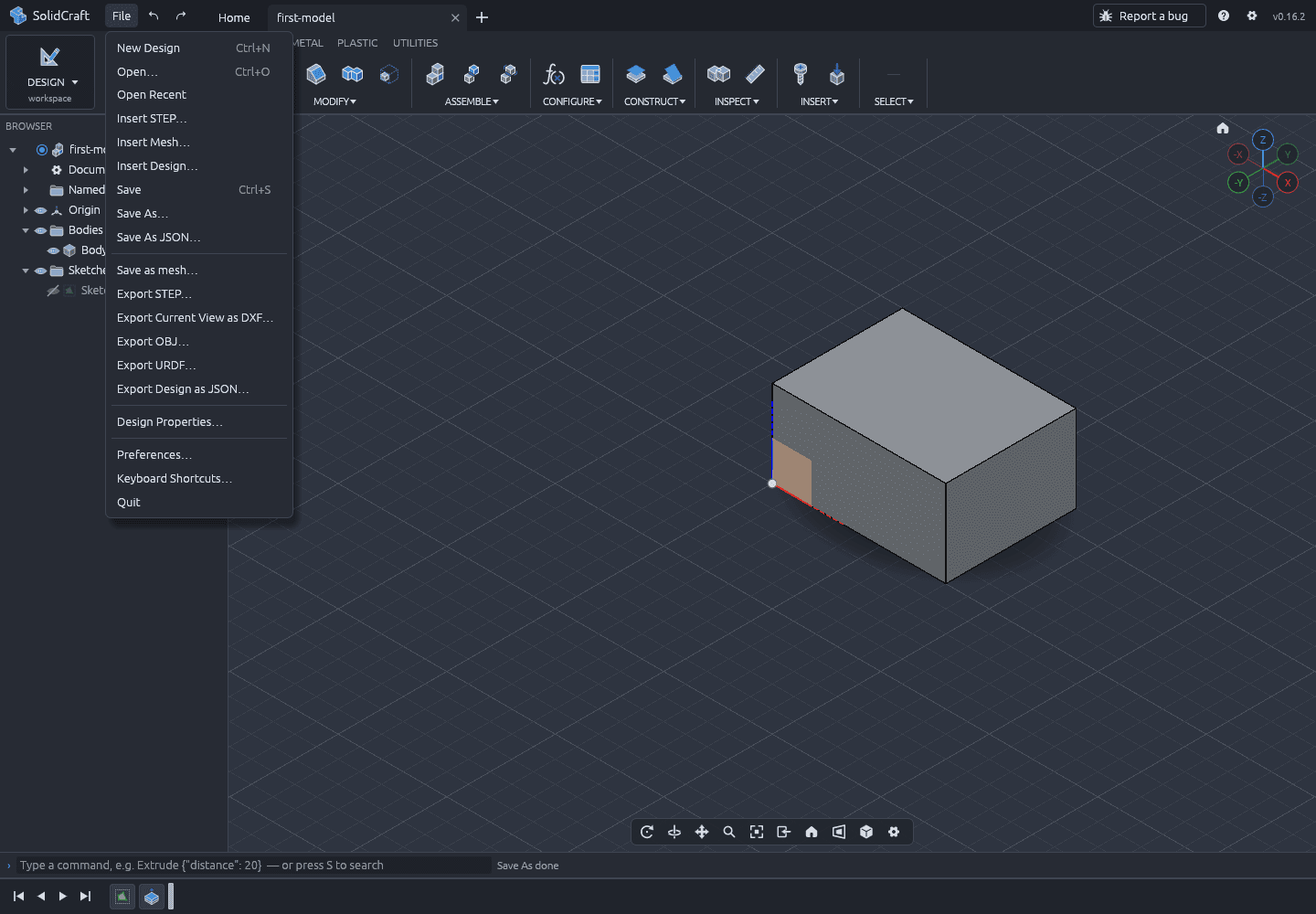
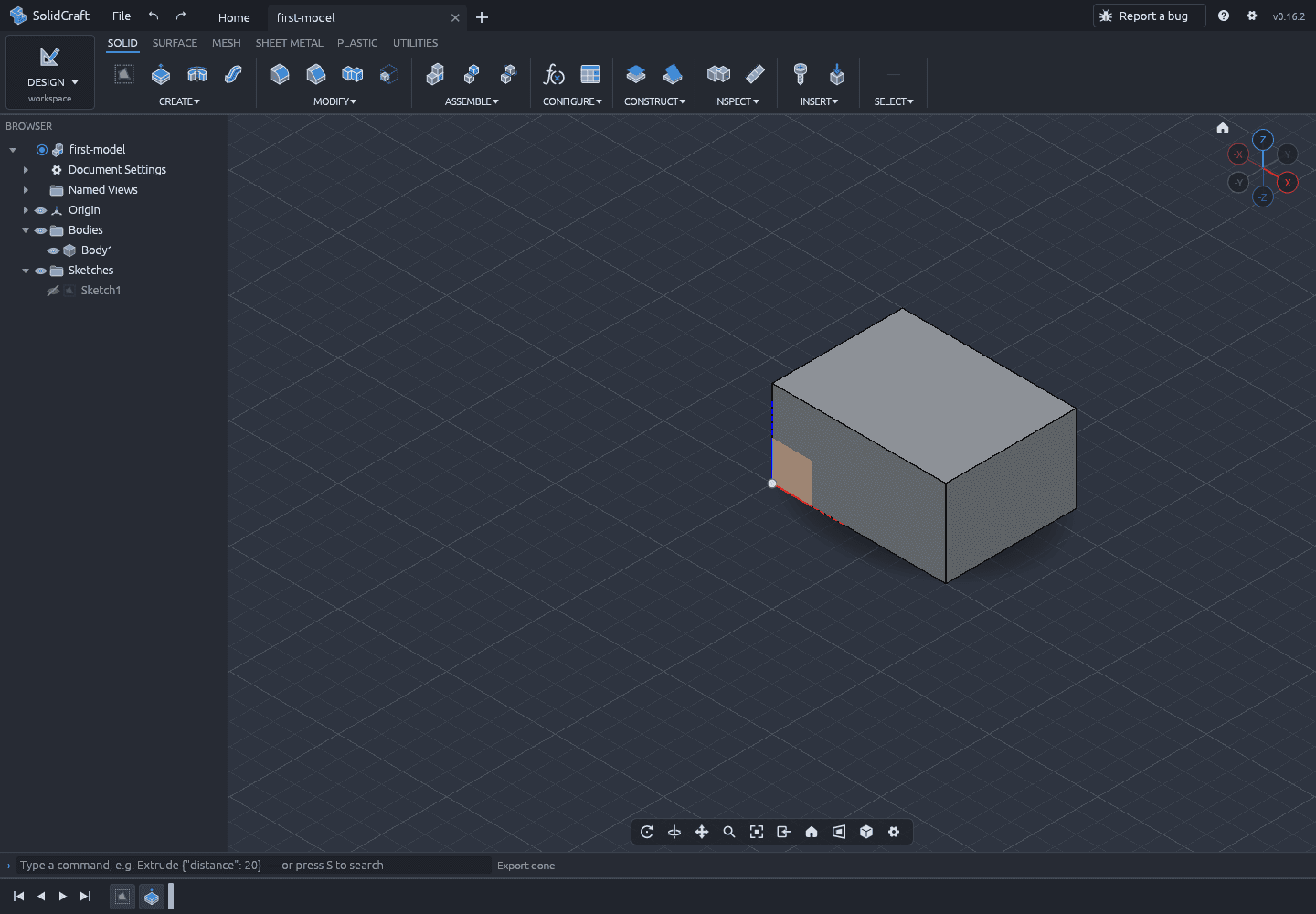
Use File → Export STEP… and choose where to save the file. The command palette equivalent used in our test was file.export with the STEP format; the menu item calls the same exporter.
In the browser, the exported file arrives through the normal download flow. In the desktop app, a native save dialog appears.
Expected result
- A first-model.step file appears in the browser's downloads (or the folder you chose).
- The file starts with ISO-10303-21 and declares AP242.
- Our 40 mm sample contains exactly eight corner points at 0/40, 0/30 and 0/20 mm.
If it goes wrong
- Export is greyed out: no document is open, or nothing is selected. Open the design and select Body1.
- The file opens at the wrong scale: STEP is unit-aware; check that the importing program treats the file as millimetres.
- No file appears: allow downloads for docs.solidcraft.io in the browser, or use the desktop app's native dialog.
- You need a mesh instead: use File → Save as mesh… for STL/3MF/OBJ. STEP is the right choice for CAD exchange.
Verification
Check the numbers yourself
The Properties dialog is the primary evidence; the arithmetic below is a second, independent check. A rectangular box with sides a, b and c has volume abc and surface area 2(ab + ac + bc).
| Measurement | App reading | Arithmetic |
|---|---|---|
| Volume, 40 mm | 24000.00 mm³ | 40 × 30 × 20 = 24,000 |
| Surface area, 40 mm | 5200.00 mm² | 2(1200 + 800 + 600) = 5,200 |
| Volume, 60 mm edit | 36000.00 mm³ | 60 × 30 × 20 = 36,000 |
| Surface area, 60 mm edit | 7200.00 mm² | 2(1800 + 1200 + 600) = 7,200 |
| Bounding box | 40.00 × 30.00 × 20.00 mm | Sketch 40 × 30, extrusion 20 |
| Topology | 6 / 12 / 8 | Box faces / edges / vertices |
Sample files and hashes
Both files below came out of the tested run. The STEP file was opened as text and checked for its schema and corner coordinates; the design file was unzipped and its JSON inspected. We did not re-import the STEP into SolidCraft, so round-trip import remains untested.
first-model.step
STEP AP242 · 5,020 bytes
SHA-256 51ae4c8177be92d1252de7348846d22bc2e0928f7ea4fa39bc503b7da8f77528
Download the STEP samplefirst-model.solidcraft
container/1 · solidcraft/28 · 991 bytes
SHA-256 8fbaa2aa1ca86fca009bb36059eeff5bea6e926be7173dff8ec2e1f6b69f4908
Download the design sampleWhat was tested, and what was not
- Tested: the official web app reporting 0.16.2, running in headless Chromium on macOS 12.7.6, on 19 October 2026.
- Tested: sketch creation on XY, dimensioned rectangle, extrude, parametric edit in both directions, saving to browser storage, persistence across a full page reload, reopening from Recent, and STEP export.
- Not tested: the Windows, macOS and Linux desktop installers. They were identified from the official release assets, not launched here.
- Not tested: native file dialogs, touch input, STEP re-import, and SolidCraft on a second machine. Those steps may differ on your system.
If something still does not match
First compare the version number in the app's top-right corner. A newer release can change menus or defaults. Then check the official documentation and issue tracker; the project is the authority on its own behaviour, and this guide records only what the tested build did.
For file problems, the exact numbers above are the quickest diagnostic: if volume is 24,000 mm³ and the bounding box is 40 × 30 × 20, the model is correct even if a panel looks unfamiliar.
Next: choose how you will run it
The tutorial works in the browser and in the desktop build. The download page lists the exact files, architectures and signing status for this release.